
Last updated Jul 13, 2023
Restore Google Analytics Network Dimensions with 3rd-Party Solutions
The Google Analytics ISP dimensions — Service Provider and Network Domain — were very useful to a whole bunch of GA users around the world. When Google decided to drop (deprecate) them, we weren’t happy at all.
Fortunately, there are good 3rd-party workarounds to easily restore this information in Google Analytics. IpMeta is one such solution. I use it and it works great.
Learn more about implementing IpMeta below.
And, for B2B companies who want to identify website visitors for lead generation, there are other vendor solutions that can greatly help with B2B sales lead gen and pipeline development based on identifying website visitor traffic.
Let’s explore IpMeta and other B2B website analytics tools.

This post contains a few referral links to vendor partners. We may receive compensation for purchases made via these links, at no additional cost to buyers.
Quick Summary
- Google Analytics dropped support for its ‘ISP dimensions’ in early 2020, leaving many GA users wanting these features back for various legitimate uses.
- 3rd-party GA add-on IpMeta restores GA’s ‘Service Provider’ and ‘Network Domain’ dimensions for both GA3 and GA4 properties. Learn more below.
- For B2B firms, IpMeta and other vendor tools can be used to identify anonymous visitors (companies) visiting your website. Jump down to this topic here.
- For B2B users, IpMeta and other solutions help with sales lead generation and also enable affordable account-based marketing (ABM) initiatives.
Google Analytics Drops the ISP Dimensions —
Service Provider and Network Domain
Losing Key Dimensions in the Google Analytics Network Report
In early February of 2020, Google Analytics users everywhere started noticing that the Service Provider and Network Domain dimensions were suddenly showing as (not set).
These dimensions were commonly found in the Audience >> Technology >> Network reporting path in GA and were available for other custom reporting as well.
Google had apparently been hinting for a while that this could happen, and then suddenly it actually did. This change still caught many GA users off guard, and the reports they had built based on these dimensions suddenly became useless.
The main reason seems to be related to user privacy regulations, such as the GDPR in Europe and the CCPA in California.
This is understandable, yet many GA users were reliant on these two network dimensions for legitimate uses that didn’t compromise the personal privacy of their website users.
Here’s how that looks in Google Analytics (GA3 or ‘Universal Analytics’), starting in Feb 2020 and continuing forward.

Impact of Losing These Dimensions
People used the Google Analytics network dimensions for various reasons, including:
- Filtering out unwanted ISP and bot traffic
- Segmenting or filtering internal corporate traffic
- Identifying business / corporate visitors (more on this below for B2B users)
- Identifying specific sub-groups of visitors (.edu, .org, .gov, .mil, .uk, etc.)
- Building specific advanced filters using RegEx syntax
Of course, once those dimensions no longer held useful data, any reports or filters that relied on them suddenly became useless.
But do not despair! There are ways around this problem, as described below.
Restore Google Analytics ISP Dimensions with IpMeta
IpMeta to the Rescue
The good news, as many have discovered, is that a solution from IpMeta popped up quickly to address this issue. Its purpose is to help us quickly restore access to the Service Provider and Network Domain insights directly within Google Analytics.
Two Free Options
IpMeta offers two free options:
- Free Forever Limited — Provides the Service Provider and Network Domain dimensions for up to 100k pageviews per month. No registration required.
- Free Forever Unlimited — Provides the Service Provider and Network Domain dimensions, PLUS a Network Type dimension to identify ISPs, companies, educational institutions, and crawlers or spiders. Unlimited pageviews per month. Requires registration.
IpMeta API Keys
With an IpMeta account and login, you’ll be able to easily create API keys and assign them to specific website domains. The API key is what allows your website to communicate with the IpMeta service for each new visitor and populate the new custom dimensions within Google Analytics.
You can have more than one API key per registered login. This means you can use IpMeta on multiple websites from a single registered user account.
New Custom Dimensions
To implement this service, follow these IpMeta setup steps.
You’ll need to establish new custom dimensions in your Google Analytics setup, as shown below.
This will give you the IpMeta Service Provider and IpMeta Network Domain dimensions that you’ll want to start using in your GA reports. These will effectively replace the two deprecated dimensions in GA, which still exist but will continue to show (not set) in place of actual values.
IpMeta Network Type is also available as a new custom dimension for registered ‘Unlimited’ users.
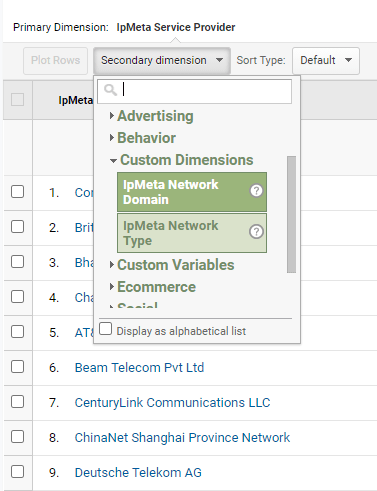
These new dimensions will also start to appear as options for secondary dimensions in GA, as shown here with IpMeta Service Provider as the primary dimension.
Modified Google Analytics Tracking Code
You will also need to modify your Google Analytics tag to include the code for the IpMeta service. For example, adding the following directly after your main gtag.js code snippet:
<!– Note: plugin scripts must be included after the tracking snippet. –>
<script src=”https://ipmeta.io/plugin.js”></script>
<script>
provideGtagPlugin({
apiKey: ‘add your own IpMeta API key here‘,
serviceProvider: ‘dimension1’,
networkDomain: ‘dimension2’,
networkType: ‘dimension3’,
});
</script>
IpMeta Events in Google Analytics
One pleasant surprise I found after implementing IpMeta is that it triggers a new event action in Google Analytics. It follows this structure:
- Event Category = general
- Event Action = ipmeta_event
- Event Label = (not set)
You’ll see at least one new ipmeta_event in your Google Analytics for every new website visit. I think of this mostly as a simple way to verify that the IpMeta script is firing as expected. You will also see it in your Realtime >> Events report as new users come in.
Example IpMeta Report
Here’s a sample GA report that shows two of the new IpMeta custom dimensions in action.
The IpMeta Network Type dimension will definitely be useful for many GA users. It’s available with the ‘Free Unlimited’ registration at IpMeta.

IpMeta Reporting Templates
The IpMeta team also provides a number of handy reporting templates that can jumpstart and simplify your GA reporting needs in this area.
Using these templates, you can filter out ISPs and spider/crawler traffic, identify educational institutions, zero in just on business users, etc.
For the latest options, see the IpMeta reporting templates page.
You can also build and apply more complex filtering on the new IpMeta custom dimensions using RegEx (‘Regular Expressions’) syntax. For example, if you know of specific business names or text strings that you want to track in either the IpMeta Service Provider or IpMeta Network Domain dimensions, you can build such filters with RegEx.
RegEx filtering is not exactly intuitive, but if you do some web searches on the topic you’ll find several handy guides available. A little knowledge of RegEx syntax will go a long way for many users.
IpMeta and Google Analytics 4 (GA4)
As most Google Analytics users know well by now, Google has announced that GA’s familiar Universal Analytics property type will become unsupported after July 1, 2023.
This has forced many GA users to adopt Google Analytics 4 (GA4), while others may be switching over to non-Google analytics options.
Fortunately, the IpMeta team has rolled out support for GA4.
See these instructions to implement IpMeta with Google Analytics 4 properties.
This implementation method does require that you also use Google Tag Manager, so just be aware of that.
GDPR and CCPA Compliance
IpMeta does not identify individual users (people) and does not store IP address data. It also does not provide numeric IP addresses to Google Analytics or IpMeta user admins.
As a result, IpMeta has no negative concerns with respect to privacy regulations such as GDPR and CCPA.
IpMeta does recommend that you disclose its use in privacy policies. For example, in the same area that discusses your website’s use of Google Analytics.
Using IpMeta in B2B Marketing and Lead Generation
Build Your B2B Sales and Revenue Pipeline
If you’re in a B2B marketing and/or sales role, you can use IpMeta to help identify the actual companies that are visiting your website.
This is helpful for lead generation, providing sales intelligence insights that B2B revenue teams can act on immediately or as needed in their selling process.
Using filters on the IpMeta Service Provider and IpMeta Network Domain dimensions in GA, it’s possible to weed out the non-useful ISP (telecom providers) and zero in on actual companies that are identifiable based on IP address data.
The IpMeta reporting templates can also help you get going in the right direction here.
Additional Marketing Insights
For B2B marketing teams, the visiting companies data provided by IpMeta can also help with campaign measurement and follow-up, account-based marketing (ABM) performance, content marketing metrics, and similar areas of marketing analysis.
IpMeta vs B2B Website Visitor Tracking Tools
Basic vs Advanced B2B Website Visitor Tracking
For B2B firms, IpMeta can serve as a great basic website visitor identification function and ABM support tool. For some firms, this will be all they need in this area. (I have clients who are using it exactly this way today.)
Other B2B companies, however, will decide they need a more feature-rich visitor identification solution to help their sales teams build more pipeline and convert these prospects into new deals and revenue.
Related: Also see this post to understand how B2B website visitor tracking tools support account-based marketing (ABM) programs.
For ABM fans, especially those with limited budget and staff, IpMeta and several of the B2B website visitor tracking tools can help kickstart very affordable ABM.
These tools can be especially useful for supporting basic ABM for smaller businesses.
Comparing the Options
This table captures the main similarities and differences between IpMeta and the established B2B website visitor tracking tools available today. This comparison is limited to a B2B context.
You can also jump to a sampling of specific vendors here.
IpMeta vs Dedicated B2B Website Visitor Tracking Tools
| Product Feature (B2B Focus) | IpMeta (Unlimited) | Dedicated B2B Visitor Tracking Tools | Notes |
|---|---|---|---|
| Reverse IP Lookup | Yes | Yes | Visitor identification at an organizational level |
| Use for >1 Websites | Yes | Some (varies) | |
| Tracking Code | Yes (GA based) | Yes (vendor script) | New or modified tracking code required either way |
| GDPR and CCPA Compliant | Yes | Yes | No personally identifiable information (PII) collected |
| Designed Expressly for B2B Sales and Marketing | No | Yes | |
| B2B Sales-Friendly Interface | Not Specifically | Yes | IpMeta relies on GA reports and user interface |
| ABM Support (account-based marketing) | Limited | Advanced | Can also include B2B retargeting and account-based advertising |
| Reporting Templates | Yes (GA based) | Yes (vendor specific) | |
| Segment by User Type | Yes | Yes | Business, ISP, educational, crawlers, etc. |
| Firmographic Data | No | Yes | Company size, industry, other firm-level data |
| Visitor Lead Scoring | No | Yes | By website pages visited, etc. |
| Visitor Watchlists and Alerts | No | Yes | Customizable in the dedicated B2B tools |
| Integrated Options for Company Contacts | No | Yes | Free or paid options |
| 3rd-Party Tool Integrations | No | Yes | CRMs, Marketing Automation, etc. |
| Monthly Cost | Free | $30 – $100+ (typical) | Some of the B2B tools also have limited free versions |
Increasingly, there’s also the challenge of identifying and tracking corporate website visitors who work remotely, away from company offices and IP networks. Some vendors are adding features and technologies to help address this problem.
For example, here is how Leadfeeder applies proprietary techniques to help in these situations.
Leading B2B Website Visitor Tracking Vendors
The vendors listed below are many of the top contenders in the area of B2B website visitor tracking. Clicking on the logos and links here will open the vendor websites in new browser tabs.
All of these vendors offer free software trials with no further commitments required. Most trial periods are two weeks long, though this varies a bit by vendor.

Clickback WEB is a good point-product option for visitor tracking. Features include visitor click-path data and return visitor notifications.

CommuniGator (now part of Spotler UK) has an interesting B2B software suite that includes GatorLeads for B2B IP-based lead generation.

KickFire’s LIVE Leads solution offers advanced visitor tracking functionality with proprietary IP-based value-added features.

Leadberry is another good point-product solution for B2B IP visitor identification and tracking.

Leadfeeder includes advanced filtering capabilities to help eliminate non-useful visitor data.

Lead Forensics is a well-established vendor in the area of B2B IP tracking. They also offer a mobile app to help on-the-go sales teams stay on top of web lead activity.

LeadLander is another point-product visitor tracking option with an intuitive user interface and no per-user charges.

Visitor Queue is an affordable option for B2B IP tracking specifically with sales users in mind.

Visual Visitor provides an affordable point-product solution with features for email campaigns, form lead capture, and even call tracking.

WhoIsVisiting is a B2B IP tracking solution that features an ‘Engagement Bar’ for simple visual lead scoring, plus advanced filtering and lead management.
Leadfeeder + Echobot = Dealfront
In 2022, Leadfeeder and Germany-based Echobot merged to form a new combined firm named Dealfront, which officially launched in April 2023.
Dealfront is an EU-native and AI-powered go-to-market (GTM) platform that helps B2B sales and marketing teams generate leads and close deals in Europe, plus non-EU sales regions including the UK, United States, and Canada.
Dealfront’s capabilities include B2B sales prospecting, buyer intent signals, website visitor tracking, and targeted B2B advertising.
Questions or Comments?
Drop me a line in the comments area below if you have any questions, comments, or other thoughts on using IpMeta or any other tools for B2B website visitor tracking.
I hope this info has been helpful. Thanks for reading, and good luck with your website analytics work — and better B2B sales lead generation if that’s also your focus!
Hi, I don’ know if I’ll be replied or not but I want to know on how can i create IpMeta reports on GA4. There is no comments or templates available there so I was just trying to find some help on it. And also if there is any other free tool that can do the job.
Thanks
Hello and thanks for your question! First, have you already implemented IpMeta on GA4 for your website property? If so, can you confirm that you can see events named ‘ipmeta_event’ in the GA4 Realtime view when someone visits your site? You should then also be able to click on those and see Event Parameters called ‘dimension1’, ‘dimension2’, and ‘dimension3’ for the company/network identifiers. (See two images below.)
If you can see these bits of IpMeta event data in GA4 Realtime, then I think the next step is to try to pull them into custom GA4 Events reports. Let me know where you are in terms of IpMeta implementation and we can go from there.
I may also be able to connect you with the main IpMeta devs if that might help. For a free reporting option (outside of GA4 native reporting), you might also look at Google Data Studio, now called Looker Studio. See https://lookerstudio.google.com/
Also see these IpMeta event screenshots I just grabbed from my own GA4 Realtime view…
Let me know if this helps.
Hi David,
I have followed the ipmeta.io instructions, but now I can only see the IpMeta info on the User property popup inside the real time reporting in GA4. My account is not triggering a “ipmeta_event”. If you can share more info on the steps you followed to create an event which shows this info, I would really appreciate it.
Thank you
Hello! It’s interesting that you are seeing some IpMeta info in the User property panel of GA4’s Realtime view, but not seeing the “ipmeta_event” data in the Events panel — which is where it shows up for me — per my screenshots above from last November.
I had originally set up IpMeta for Universal Analytics (GA3), and when I migrated and connected that property to GA4, the IpMeta data kept flowing for me as GA4 Events, as expected. In other words, I didn’t have to use Tag Manager for my GA4 setup of IpMeta.
Did you do a native GA4 setup using Tag Manager?
In any case, I’d recommend that you get in touch with Jerre Baum at IpMeta for more insights and debug tips. If you are on Twitter/X, he has a profile there at https://twitter.com/jerre_baum.
If I think of anything else helpful, I’ll add a new comment here and/or update my post above.
Good luck with resolving this. I do like having the IpMeta data available in GA4.
I have a couple of questions, but let me set the context. the site is lsbio.com and we have a lot of pages. we sell to biological research institutions with most of their funding (greater than 80% coming from nih.gov. So they are already along with their research in the public domain even if they are a pharma company. We never moved to gtag as we had moved to GTM when we had the UA indentifier. GTM recognizes that still. The GTM config uses the UA ID as a variable so the gtag script is not used. Where does the imeta script get instantiated? I am hoping that I don’t need to convert to the gtag script.
Hi Michael, thanks for your comment and question.
If you haven’t done this already, check out the info at https://ipmeta.io/instructions and immediately hit the Next Step button at the bottom. Bypass the Custom Dimensions setup just for now. Then hit the Google Tag Manager option. Do the instructions there help?
Looks like there’s an easy way to add the IpMeta code right after the GTM snippet.
Let me know if this helps. If not I can try to get your question in front of the IpMeta devs.