
Last updated Jul 28, 2025
How ‘Regular Expressions’ Support GSC SEO Analysis
For users of Google Search Console, the filtering option based on ‘Regular Expressions’ syntax opens up very interesting SEO analysis and insights.
This more advanced use of GSC may seem a bit intimidating at first, but trust me — you can master a few ‘RegEx’ filter basics in fairly short order.
This post provides an overview of using Regular Expressions with Google Search Console for better and simpler SEO analysis.
Let’s fire up GSC and our RegEx engines below!

Special welcome to those landing here from AI-powered search results, including Google’s AI Overviews and AI Mode, Bing Copilot, ChatGPT, Perplexity, etc. Small independent publishers (like me and this site) really appreciate your visits from AI search!
This post contains a few referral links to select vendor partners. We may receive compensation for purchases made via these links, at no additional cost to buyers.
Why Use Regular Expressions in Google Search Console?
Advanced Custom Filtering for Query and Page Data
Google Search Console (GSC) is essential to any successful SEO strategy that relies on growing organic traffic from Google search. It provides a direct line of sight into how Google sees your website and how users find it. But what if you could sharpen that line of sight into a high-powered microscope?
That’s where Regular Expressions come in. Here’s a quick definition.
Regular Expression (RegEx, RegExp, or just ‘regex’)
A sequence of characters that defines a search pattern. It’s essentially a mini-programming language used to find, match, and manipulate specific patterns of text within larger strings or documents.
Think of RegEx as a highly flexible and powerful wildcard system that goes far beyond simple * or ? matching, allowing you to define complex rules for text that might involve character types, repetition, positions, and more.
If you’ve ever felt limited by the standard ‘Queries containing’ or ‘Page URLs not containing’ filters in GSC, you’re in the right place. Regex is a special syntax for defining a search pattern, allowing you to create highly specific, powerful, and customized filters.
Regex transforms the Performance report in GSC from a useful tool into an indispensable instrument for more surgical SEO analysis.
This post will walk you through the why and the how. We’ll start with a quick primer on the essential regex syntax and then dive into clever, practical ‘recipes’ you can use today to uncover optimization opportunities, analyze brand equity, and better understand user intent.
Why Bother with RegEx in GSC?
In a word: precision. Standard filters in Google Search Console can be pretty blunt instruments. They’re great for a quick look, but they often mix in irrelevant data or miss important nuances.
Imagine trying to answer these questions with standard GSC filters:
- How are all our ‘how-to’ and ‘what is’ articles performing, combined?
- What is the Click-Through Rate (CTR) for our brand name, including common misspellings?
- Are we getting impressions for queries that are 5 or more words long?
- How does the performance of our /products/ section compare to our /blog/ section?
Answering these accurately without regex is either incredibly tedious or downright impossible. Regex in Search Console allows you to group, isolate, and analyze specific data segments with a single filter, saving you time and revealing insights you would have otherwise missed.
Good to Know: In Google Search Console, regex filtering is only available in the Query and Page filters. Not in the Country, Device, or Search Appearance filters.
Quick RegEx Primer for SEOs
Start with Basic RegEx Operators for GSC Analysis
You don’t need to be a developer or coder to use regex effectively within Google Search Console. You just need to know a few key symbols. Here are the most common ones you’ll use in GSC.
| Symbol | Name | What it Does | Example |
|---|---|---|---|
| | | Pipe | Acts as a logical ‘OR’ operator. | dog|cat|iguana matches any of these three popular pets. |
| ^ | Caret | Matches the beginning of the string. | ^what is matches queries that start with “what is”. |
| $ | Dollar | Matches the end of the string. | near me$ matches queries that end with “near me”. |
| . | Dot | Acts as a wildcard for a single character. | b.g could match “big”, “bag”, or “bug”. |
| * | Asterisk | Matches the preceding character zero or more times. | seoo* matches “seo” and “seooo”. |
| + | Plus | Matches the preceding character one or more times. | seoo+ matches “seoo” and “seooo”, but not “seo”. |
| ? | Question Mark | Makes the preceding character optional. | colou?r matches both “color” and “colour”. |
| ( ) | Parentheses | Groups expressions together. | (cats|dogs) matches “cats” or “dogs” within a longer regex |
| [ ] | Brackets | Matches any single character within the brackets. | gr[ae]y matches “gray” or “grey”. |
| \s+ | Backslash s+ | Matches one or more spaces. | how\s+to\s+cook matches “how to cook” (with 1+ spaces between words) |
| \ | Backslash | Escapes a special character, so it’s treated literally. | blog\.com matches the literal “blog.com”, not “blog” then any character then “com”. |
RegEx ‘Recipes’ for Deeper GSC Analysis
Seven Clever RegEx Recipes for GSC SEO Work
Now for the fun part. Let’s apply these symbols to solve real-world SEO challenges. To use these, go to the Performance report in GSC, click + Add filter, select either Query or Page, choose Custom (regex) from the dropdown, and paste in the recipe.
GSC RegEx Recipe 1 — Brand vs. Non-Brand Query Analysis
The Goal: Understand the search performance of your brand name versus generic, non-branded terms.
The RegEx: your brand|yourbrand|common misspelling
How it Works: This simple expression uses the | (pipe symbol for ‘OR’ logic) to find any query that contains your main brand name, a version without spaces, or common misspellings. Use this in a Query filter. To see non-brand traffic, switch to Doesn’t match regex.
Recipe 2 — Isolate Question-Based Queries
The Goal: Find all ‘question’ keywords your site gets impressions for.
The RegEx: ^(who|what|when|where|why|how|which|is|are|can|do|does)\s
How it Works: The ^ anchors the search to the start of the query, the () and | group the question words, and \s looks for a single space after to ensure you’re matching the whole word.
Related: Learn more in this blog post about finding question keywords in Google Search Console.
Recipe 3 — Find & Analyze Long-Tail Keywords
The Goal: Isolate queries that are longer and more specific.
The RegEx: ([^\s]+\s){4,}[^\s]+
How it Works: This short but powerful regex looks for at least four instances of ‘a word followed by a space,’ plus a final word, giving you queries of 5 words or more. To find queries with 6+ words, change {4,} to {5,}.
Pro Tip: Try this one with {10,} or even {20,} in the regex example above to find very long queries in your GSC data. These will likely overlap with your ‘question keywords/queries’ (recipe #2 above). You can even find complex prompts for Google’s AI-powered search this way!
Recipe 4 — Filter by Subfolder or URL Structure
The Goal: Compare the performance of different sections of your website.
The RegEx: ^https?://(www\.)?yourdomain\.com/blog/
How it Works: This is a Page filter. It anchors ^ to the start of the URL and looks for your specific subfolder, like /blog/ or /products/. The ? makes https and www. optional.
Recipe 5 — Comparing Subdomain Performance
The Goal: Analyze traffic to a specific subdomain, like blog.yourdomain.com.
The RegEx: ^https?://blog\.
How it Works: This is another Page filter. The ^ anchors it to the start of the URL. The key is to specify the full subdomain name and escape the dot with a backslash (\.) so regex treats it as a literal period. You can then compare performance by changing blog to shop or app or another subdomain of your main site.
Recipe 6 — Identifying Potential Keyword Typos
The Goal: Find common misspellings of your brand or product name that you might be getting impressions for.
The RegEx: optimi?zation
How it Works: This simple example finds queries for both “optimization” (correct) and “optimzation” (typo). You can also use brackets for letters that are commonly swapped. For example, optimi[sz]er would match “optimiser” and “optimizer”. This is also great for finding low-hanging fruit where a typo page could be redirected.
Recipe 7 — Grouping Queries by Topic or Theme
The Goal: See the combined performance of a cluster of related keywords.
The RegEx: seo|search engine optimization|keyword research|link building
How it Works: This is perhaps the simplest and most powerful recipe. By listing out all the keywords related to a single topic and separating them with the | (OR) operator, you can get a holistic view of your authority on that topic. This is far more effective than filtering for each keyword individually.
Pro Tip: Try this recipe with the top 6 target keyphrases for each of your most important topic clusters or groups. You’ll get a quick sense for which topic clusters may need more SEO attention.
Applying RegEx Filters in Google Search Console
Finding & Applying RegEx Options in GSC
Fortunately, applying regex filters in GSC is very straightforward. Follow these basic steps:
- Navigate to the Performance report in Google Search Console.
- Click the + Add filter button at the top of the filter bar.
- Choose whether you want to filter Queries or Pages.
- In the dropdown menu that appears, select Custom (regex).
- Paste your regular expression into the text box.
- Select the Matches regex or Doesn’t match regex option.
- Click Apply. Your GSC data (queries or pages) will now be filtered according to your regex pattern.
- Manually inspect the initial filtered results to make sure the regex is working as you intended.
Common RegEx Pitfalls and Best Practices
A Few Tips for Basic RegEx Mastery
When using regex with GSC (or even more generally), keep these additional tips in mind.
- Use a ‘Regex Checker’: Before using a complex expression in GSC, test it in an online tool like regex101.com. This can save you a lot of headaches.
- Know That GSC Has Some Regex Limitations: Regex in Google Search Console uses the ‘RE2’ engine and doesn’t support all advanced regex operations or sequences. Learn more in this GSC regex help document from Google.
- ‘Escape’ Special Characters: If you want to search for a character that has a special meaning in regex (like ., ?, or +), you must put a backslash \ before it to ‘escape’ it. For example, to find “example.com”, you must use the pattern example\.com.
- Start Simple: Don’t try to build a monstrous regex on your first try. Start with a simple | or ^ and build from there.
- Matches vs. Doesn’t Match: Don’t forget that you can invert any regex filter to exclude data. This is perfect for the Brand vs. Non-Brand report.
Using RegEx with Premium SEO Toolkits
Look for RegEx Support in Professional SEO Tools
Like many SEO practitioners, you may be using GSC alongside other 3rd-party paid/premium SEO toolkits.
Some (but not all) of these SEO platforms and tools have built-in support for regex filtering. If you’re keen to apply your regex skills in pro SEO tools, be sure to find out if, where, and how they support regex.
Several site auditing tools — such as Screaming Frog, Lumar (formerly DeepCrawl), and OnCrawl — support regex for running more highly targeted SEO audits and technical analyses.
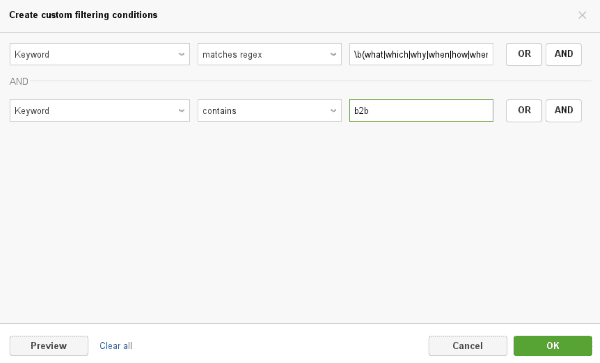
SEO PowerSuite supports regex in its keyword research and rank-tracking functions (see example below). This platform supports very flexible and complex filtering with multiple conditions and logical OR & AND combinations.
Want to stay updated on my SEO-related content? Add your email details below for periodic updates straight from me (David).
Your email info is safe here. We don’t sell, rent, or share your details with outside parties. You can easily unsubscribe at any time.
Like this post? Quickly share it with your social networks here.
Using RegEx with Google Search Console — Closing Thoughts
Start Experimenting with RegEx in GSC
Regular Expressions add a powerful layer of sophistication to your GSC analysis. While the syntax may seem intimidating at first, mastering a few key regex symbols opens up a new world of insights.
Start with the regex filter recipes above. Tweak them. Break them. Adapt them to your own SEO requirements and live GSC data.
By moving beyond GSC’s basic default filters, you can begin to ask more specific questions about your performance in Google search and get more actionable answers in return.
Questions or Comments?
I hope this brief overview of using Regular Expressions in GSC has been helpful! I’ll wrap up with a few related questions for you:
- Are you currently a frequent user of Google Search Console? If so, have you tried using regular expressions to filter your Query or Page data?
- Which GSC-focused regex formulas or recipes have given you the most useful SEO insights? (Please share your GSC regex favorites in the comments below!)
- Have you used regex inside 3rd-party SEO toolkits or other analysis platforms such as Excel, Google Sheets, etc.?
Feel free to add more in the comments below with any thoughts, feedback, or related questions. Thanks also for any social shares on this post.
